
1. Download the installer
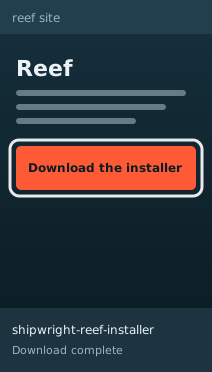
On the phone, tap Download the installer at the top of this page. The browser saves shipwright-reef-installer.noarch.rpm and shows a notification when the download is complete.
Installing takes four steps on the phone and about two minutes. You need a Sailfish OS phone and an internet connection; developer mode is not needed.
It adds the signed Reef repository for your Sailfish release, trusts the Reef signing key, installs Reef, and then removes itself.
882ff9349b02eace6b7c96afa1c4451c54a0cea14a77f684a9c8345e4b94fd1fOn a computer? Open this page on your phone instead. The installer is a Sailfish package; it does nothing on a computer.
On the phone, tap Download the installer at the top of this page. The browser saves shipwright-reef-installer.noarch.rpm and shows a notification when the download is complete.
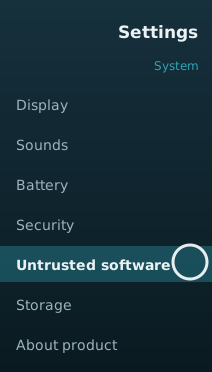
Open Settings, then System, Security, Untrusted software.
Sailfish OS only installs packages from Jolla's own sources unless you allow other sources. Reef is one of those other sources.
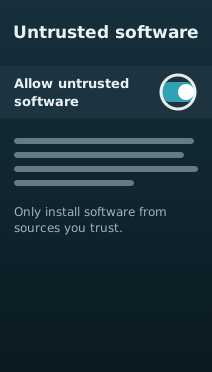
Turn on Allow untrusted software. If Sailfish shows a warning that software from other sources is not checked by Jolla, read it and accept it.
With this switch on, the phone installs any package you open, whatever its source, so only open packages from sources you trust. Reef checks every package it installs against the Reef key; turning the switch on also means trusting Reef and the developers who publish on it.

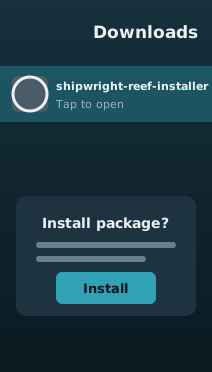
Tap the File downloaded notification, or open the downloaded file in a file manager and choose Install in its pull-down menu. Confirm the installation.
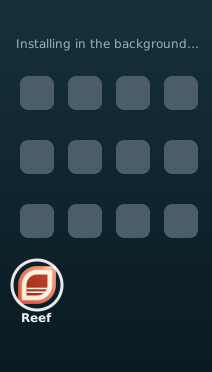
The installer then adds the Reef repository and installs Reef in the background; you do not need to do anything else.
The Reef icon appears in the app grid when the install finishes. Open it to browse and install apps.
/var/log/shipwright-reef-installer.log.